
For the best results playing Star Citizen, you need to have your Nvidia card drivers updated and settings configured. This article may be long, but it provides every bit of information you need for getting your Nvidia game ready!
Fully uninstall your current or older drivers
When upgrading your drivers, we recommend removing the old drivers before installing. You don't have to do this, but it can help!
- Right-click on your Windows button.
- Select Search and enter Uninstall Program.
- Select the option for removing programs:. The feature may be Uninstall a program or Add/Remove programs depending on your Windows version.
- Select and uninstall the older drivers for your Nvidia. The Nvidia uninstall provides an option to uninstall all Nvidia software components.
Download and install drivers
- For the latest driver, visit Nvidia. Follow the prompts to search for and download the driver. For an older Nvidia driver, see Nvidia Beta/Legacy driver search.
- Install your driver. For Nvidia, install using the custom option. Select Peform a clean install option to fully clear old files.
Important! Do not install Nvidia 3D Vision Controller and Driver. These could cause issues. - Fully shutdown your computer, then boot. Restarting will not fully clear Windows memory caching.
Check Nvidia driver version in Windows Device Manager
Running the automated driver check and update for your graphic drivers may not always work. After running the Nvidia driver updates, you can always check the Windows Device Manager.
- Right-click on your Windows icon, click Search.
- Search for and open Device Manager.
- Expand the Display adapters.
- Right-click your graphics card, select Properties, and click the Driver tab.
You want to verify this driver version and date are correct with the latest driver install.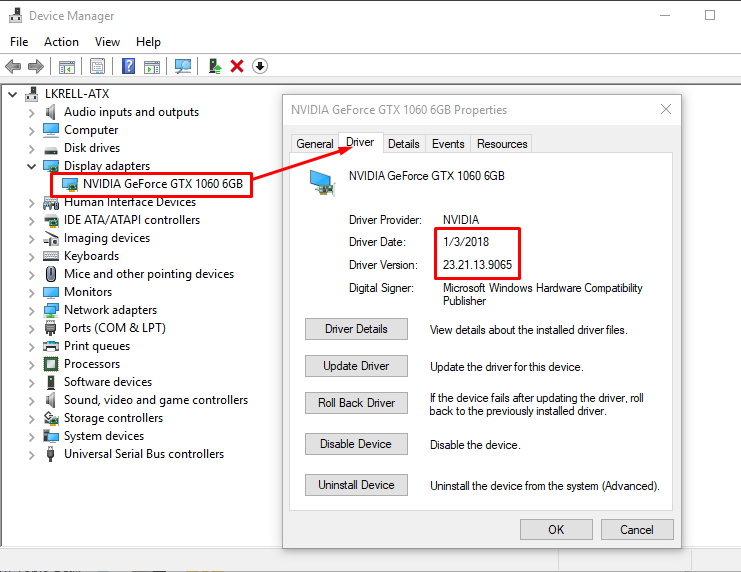
Always use your Nvidia Card
If you play on a PC with an Intel graphics card, you may have the game default to the Intel card instead of your Nvidia. This can sometimes occur on a desktop. To always use the Nvidia card, add the following settings:
- Completely close the Launcher.
- Open Nvidia Control Panel.
- Click 3D Settings > Manage 3D Settings.
- Click the Program Settings tab.
- On the Global Settings tab, locate and select the Preferred graphics processor. From the list, select High performance Nvidia Processor.
- Click Apply.
- You can also add and configure Star Citizen in the Program Settings list:
- Click the Program Settings tab.
- Click Add and browse to the Star Citizen exe: (install drive)\Program Files\Roberts Space Industries\Star Citizen\LIVE\Bin64.
- For the preferred graphics processor, select High performance Nvidia Processor.
- Click Apply.
- Under Settings, click Set Physx configuration.
- From the drop down menu, select your Nvidia graphics card for the processor.
- Click Apply.
- If you overclock your graphics card, you may also need to reset to defaults.
- Try launching the game again.
Resolutions and Scaling in Nvidia
Your Nvidia card settings may cause issues with resolutions and scaling when loading the game. These changes will always keep those in check.
- Open the Nvidia Control Panel.
- Under Display, click Change Resolution.
- Check the resolution and refresh you have set here. For example:

- Under Display, click Adjust desktop size and position.
- On the Scaling tab, turn off Override the scaling mode set by games and programs.

Override Fullscreen Optimization
We recommend making these changes on your RSI files. These work for all graphic cards. Disabling fullscreen optimization should keep 3D Vision from activating and crashing your game. You may need to configure this for the RSI Launcher and Star Citizen .exe files.
- Right-click the RSI Launcher desktop shortcut. Or go to the .exe directly in (install driver)\Program Files\Roberts Space Industries\RSI Launcher\RSI Launcher.exe and right-click the file.
- Click Properties.
- Click the Compatibility tab.
- Enable the option Disable Fullscreen Optimization.
- Click Apply.
- Navigate to (install driver)\Program Files\Roberts Space Industries\StarCitizen\Live\Bin64. Right-click the StarCitizen.exe file.
- Click Properties.
- Click the Compatibility tab.
- Enable the option Disable Fullscreen Optimization.
- Click Apply.
The game should now launch without crashing and not require overrides through a USER.cfg.
Tried everything here with no change?
If none of the previous steps showed any results, gather your game and system information files and then place a support ticket.